Book a time at booth #2232 in New Orleans. Our support team will answer your questions and help you get more from Dive Shop 360. Pick a time that works for you.
Courses with multiple e-learning options now give you full control over how they’re sold. Set a default, require a selection, or make one mandatory. Built for PADI Club, but it works for any course or agency.
Before you start: your PADI integration needs to be on version 1.1. Check under Office > Back Office Settings > Integrations.
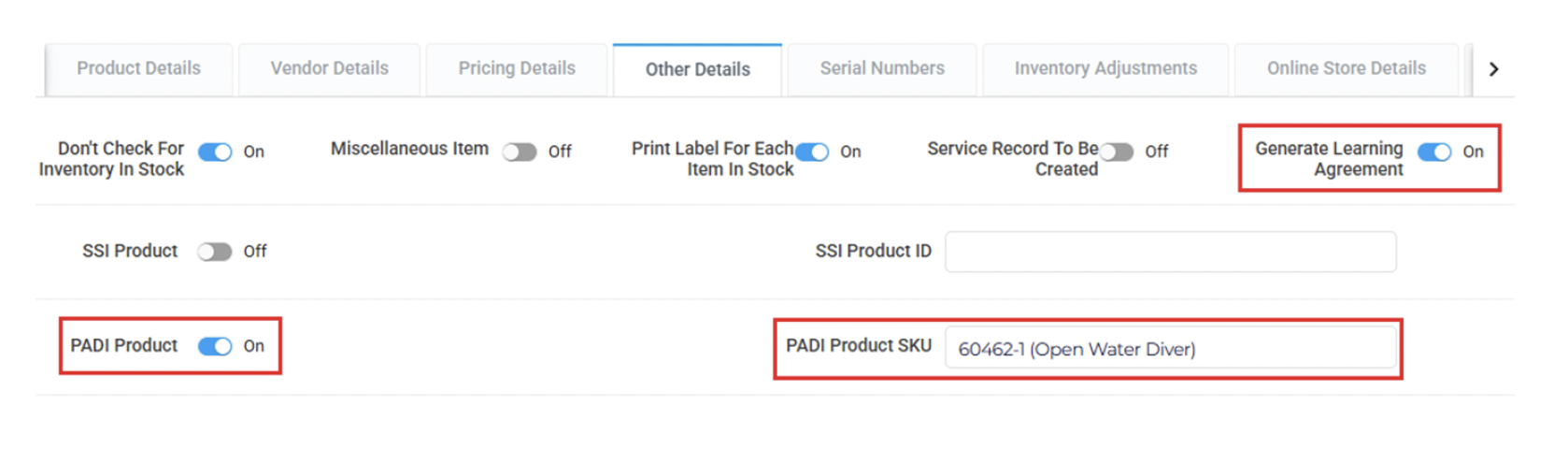
Each e-learning option needs to be linked as a product before it can go on a course.
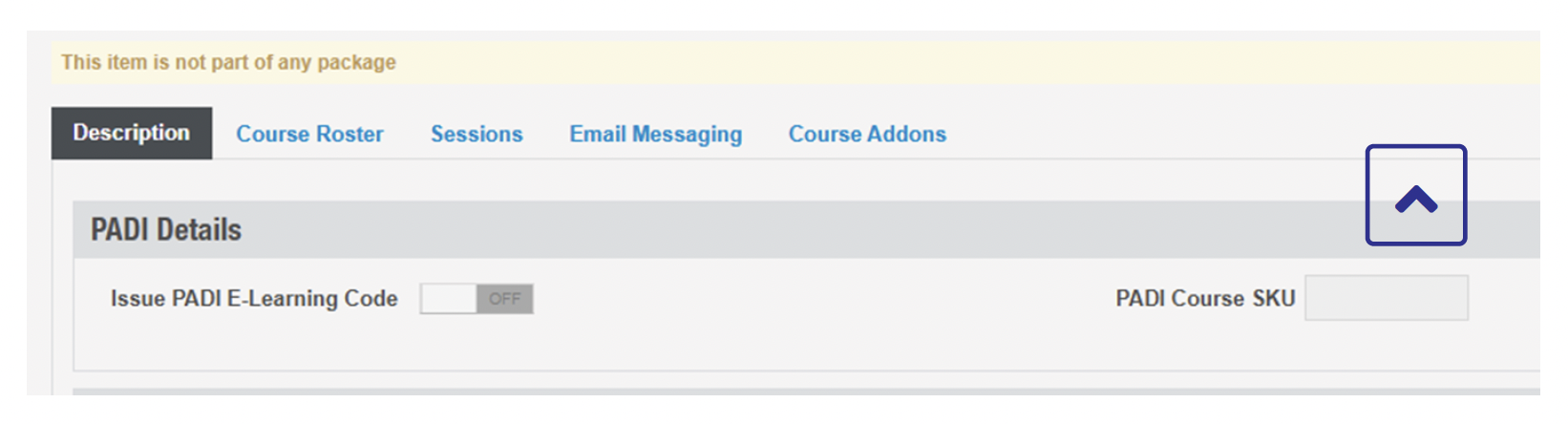
When you set up the course itself, leave Issue PADI E-Learning Code off on the Description tab. That function gets handled by the add-on products instead, so turning it on here will cause duplicate codes.
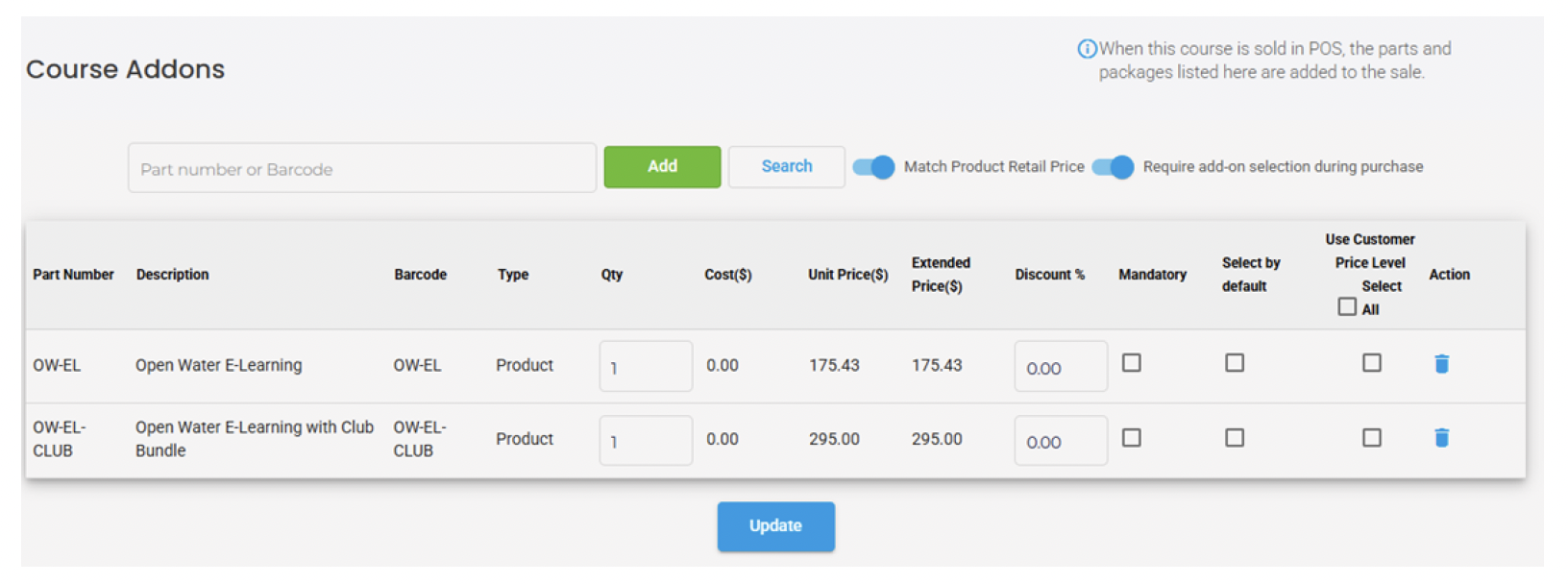
In the course’s Course Addons tab, add the part numbers for each e-learning option your students can choose from.
From here, you’ve got three settings per add-on, and they work independently:
Mix and match these based on how much choice you want to give. Want to guarantee a sale includes e-learning but let the customer pick which one? Turn on Require, skip Mandatory. Want everyone to get the Club Bundle regardless? Check Mandatory on that one.
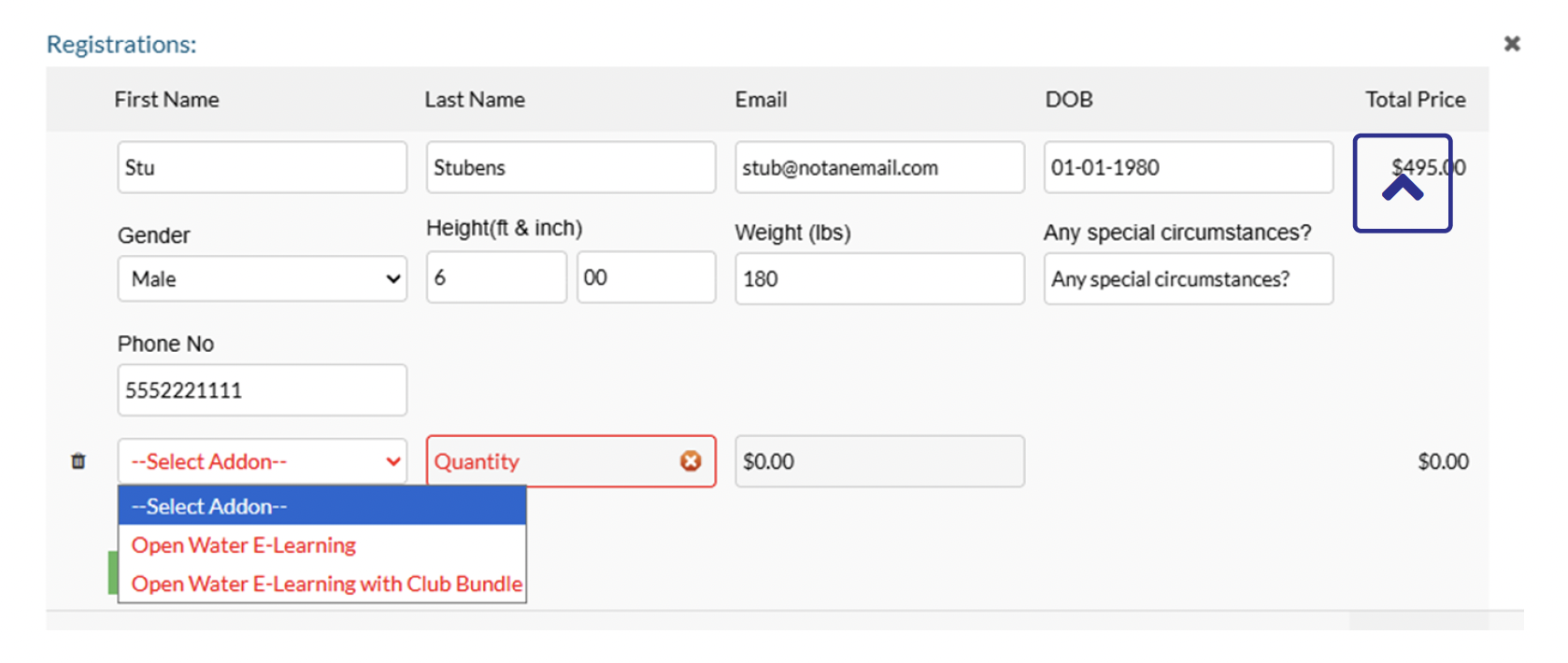
At checkout, in-store or online, the student picks their e-learning option from a dropdown before completing registration.

Go to Office > Inventory > Catalog System > Product Catalogs and search for the vendor you want to update. Select all the results, then click the red "Select All Parts on All Pages" button.
You'll see two options. Bulk Add brings in anything you don't carry yet, plus gives you the choice to update what you already have. Sync Existing only touches products already in your system, nothing new gets added.
The catalog system updates MSRP, Cost, and MAP. It won't touch anything you've priced manually. So if a product already has a manual override on it, that's usually the issue. If you want pricing to stay in sync automatically, call support and we can set up a formula for that.
That's by design. Trips and charters stick around on a profile until you mark them as sold. Once you do that, the system closes it out and turns the deposit into revenue. If you've got old travel that's still sitting open, support can help you backdate it so it closes properly.
Go to Office > Contacts > Contacts, search for the contact, then click the trash can icon next to their name. The system will ask if you want to merge.
Search for the items you want included in Manage Products. Then click Actions in the upper left, then Print Inventory List. You'll get a worksheet with just the parts from that search.
Look at the contact's details page. Every email they've been sent shows up right under their name. You can also check it from the course, trip, or charter's own page, under the Email Messaging tab. Click the down arrow next to the campaign, then click into the grey box that pops up to see stats on it.
Usually it's Chrome blocking the pop-up. Open the report again, and right when it closes, look for a small window icon on the right side of the URL bar. Click it, choose Always Allow, then reopen the report. Should load fine after that.
The system refunds the full amount automatically, so you'll need to adjust it manually. Pull up the refund on the invoice, add a MISC line item, rename it something like "Non-Refundable Deposit," and set it to whatever you're keeping. If the tax needs adjusting too, click directly on the line item description. This way the customer gets refunded and your deposit still counts as revenue.
Check if it's marked "Don't Check for Inventory in Stock." Parts marked that way get hidden from that screen by default, but you can still order them. Just turn on "View Non-Inventoried Items" and you'll be able to add it to a PO.
Pull up the refund on the invoice and ring it up as a payment toward the House Account. That puts the value of the return straight onto the customer's balance instead of handing back cash.
You probably need to subscribe to their catalog first, under Catalog Settings. That's also where you set your cost level for each vendor. Still can't find them after that? Reach out to support and we'll dig in.
Use Bulk Actions in Manage Products. It lets you update Vendor, Manufacturer, or Category across multiple parts in one shot.
House Account is what a customer owes you, basically in-house credit. Expense Account is your shop's own spending: supplies, services, whatever keeps the lights on. One thing to know: we don't track credits through House Account.
Schedule time to meet with the team!